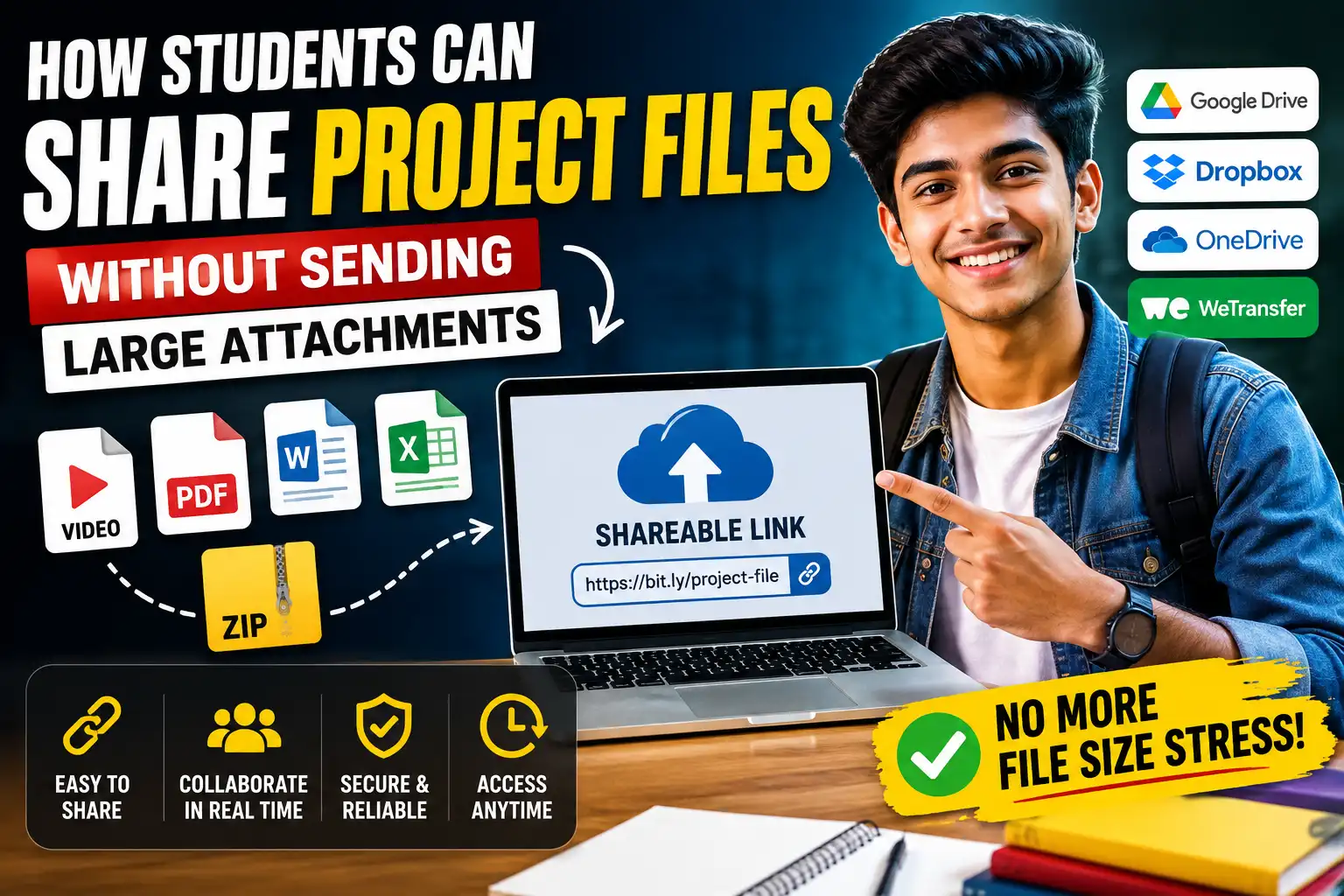
A college project can be almost finished when one file suddenly becomes the biggest problem in the group. The presentation is ready, the written report has been exported, and someone has the final project video sitting on a laptop. Then the video is attached to an email, and the upload stops because the file is too large.
When the final file is too large for email, one practical option is to upload it and share a link instead. If you are working with media, a bulk image or videos to link converter tool such as Media2URL can turn the file into a browser-accessible link, so your teammate or professor can open it without receiving the original attachment.
I have seen the same kind of situation while handling files for websites and online projects. A document that looks simple on the screen can become surprisingly difficult to move once images or video are added. The first reaction is often to compress everything, but that does not always solve the actual problem.
A large MP4 video may barely become smaller after being placed inside a ZIP file because the video itself is already compressed. A shared link can solve the size problem, but even that can fail if the wrong permission is selected or the link expires before the professor opens it. File sharing becomes much easier once you decide what the other person actually needs to do with the file.
That is what this guide focuses on. Instead of giving you another long list of file-sharing websites, we will look at the situations students actually face and choose a method that fits each one.
Why large project files become difficult to send

A normal college assignment may start with a few pages of text and grow significantly by the time the final project is ready. The high-resolution photographs and scanned pages can increase the size quickly. Screen recordings and project videos can push the file into hundreds of megabytes or even several gigabytes.
Email works well until those files exceed the attachment limit. Gmail has a 25 MB attachment limit for outgoing messages, which is enough for many documents but nowhere near enough for most full-length project videos.
Imagine four files from the same project. The PowerPoint is 12 MB, the exported report is 40 MB, the project video is 900 MB, and a folder contains all the original screenshots used during preparation.
There is no reason to share all four in the same way.
The 12 MB presentation can probably travel as an ordinary attachment. The 900 MB video clearly needs another method. The screenshots may be easier to keep inside a shared project folder rather than sending them one by one.
The interesting part is that file size is not always where the problem ends.
A student can successfully upload a 2 GB file to cloud storage and still fail to share it correctly. The professor may open the link using another Google account and see Request access. A temporary transfer URL may work perfectly on Monday and be unavailable when somebody checks it later.
This is why the better question is not simply:
How large is my project file?
It is:
What needs to happen after I share it?
Use the ACCESS check before sharing a project file

I use a simple way of thinking about this that I call the ACCESS check. It helps separate an actual file size problem from an access or collaboration problem.
Before choosing a tool, think through six things.
A — Access
Start with the person who needs the file.
Are you sending it to one teammate or submitting it to a professor? Will an entire group need it, or should anyone with the URL be able to open it?
This matters because some links work only for accounts that you have specifically approved. A student may copy a perfectly valid Google Drive URL, but that does not automatically mean the professor has permission to open it.
C — Collaboration
Next, think about what the other person needs to do.
A PowerPoint that four students are still editing should not be treated like a finished video that only needs to be watched. The first file needs collaboration, while the second mainly needs reliable delivery.
This difference is easy to miss. Students sometimes keep emailing updated copies of a document even though the real problem would be solved better by keeping one editable version online.
C — Content size
The actual file size still matters.
A 5 MB assignment can normally stay inside the usual email workflow. A 3 GB video cannot.
The size also affects upload time and mobile use. A teammate opening a huge file through mobile data may have a very different experience from somebody using a college Wi-Fi connection on a laptop.
E — Expiry
Think about how long the file needs to remain available.
A temporary transfer link can be useful when a teammate is waiting for the file right now. It is much less useful when that URL is placed inside a project report that may be checked again after several weeks.
The easiest link today is not always the safest link for the entire submission period.
S — Security
College projects sometimes contain more personal information than students realise.
A screenshot may show an email address in the corner. A report can contain student IDs or participant information. A ZIP archive may contain older files that were never meant to leave the group.
Before making a file broadly accessible, check what is actually inside it.
S — Screen
Finally, think about where the recipient is likely to open the file.
A project may be prepared entirely on a laptop while one teammate reviews everything from a phone. A professor may also open the submitted URL through a mobile browser before downloading anything.
The best sharing method should therefore work for the recipient, not only for the person uploading the file.
The ACCESS check gives you a much better starting point than searching for the service with the biggest advertised storage limit.
What students actually do when a project file becomes too large

To understand the problem better, a small survey can add something that generic media sharing guides normally do not have.
Survey data: In a survey of 50 college students, 34 students (68%) said Google Drive was their first choice when a project file became too large to attach normally. Another 9 students (18%) said they usually tried WhatsApp or another messaging app first, while 7 students (14%) preferred another method.
The more useful result was not which tool came first. It was what happened after sharing.
Among the same students, 21 (42%) said they had faced a cloud link permission problem at least once during project work. 17 (34%) remembered trying to compress a file after an email or submission system rejected it.
Mobile access also mattered. 19 (38%) said they regularly opened project files from a phone instead of always using a laptop.
These figures help explain why “just upload it to Drive” is not always a complete answer. Storage capacity solves only one part of the workflow. Permissions and the way the recipient opens the file can be just as important.
Use cloud storage when the project is still changing
Cloud storage is usually strongest when the project still has work left.
The file stays in one online location while the people involved continue using it. This is very different from sending another attachment every time somebody makes a change.
Google Drive
Google Drive is familiar to most students because it connects naturally with Docs and Slides. A standard Google account includes 15 GB of storage shared across Google services, which is enough for many normal academic projects.
The useful part is not only the storage space. A whole project folder can stay in one location while different members use the latest files.
Imagine Rohan uploads the latest project video to Drive and sends the URL to four teammates. Three people open it immediately, while the fourth sees a request access screen.
The video uploaded correctly. Nothing is wrong with the file.
The problem is permission.
This is one of the most frustrating file sharing mistakes because everything appears normal for the person who owns the file. Rohan can open it because he is already signed into the account that controls it.
A very simple test catches many of these problems. Copy the link and open it in an incognito or private browser window before submitting it. If the file still opens with the access level you intended, you have a much better idea of what somebody outside your account will see.
Students already using several digital platforms for study can also organise these workflows around broader student productivity tools instead of keeping every project file in a different place.
Dropbox, OneDrive and iCloud
Dropbox, OneDrive and iCloud solve a similar problem from different ecosystems. The file remains online, and the student sends access to it rather than uploading a fresh copy every time.
Dropbox Basic has traditionally started with 2 GB of free storage. Students using Microsoft accounts may already be familiar with OneDrive, while iPhone and Mac users may already have files stored in iCloud.
The important difference is not the brand. It is what happens to the file during the project.
Suppose a report changes five times before submission. The first email contains Project-Final.pdf. A teammate changes something and sends Project-Final-New.pdf.
A third correction produces Project-Final-Corrected.pdf.
By the end of the week, nobody is completely sure which version is actually final.
Keeping the working project in one shared location avoids that problem because everyone can return to the same source instead of searching through old attachments.
Cloud storage works particularly well when the file has a life before and after the moment you share it.
Use a file transfer service when somebody only needs the finished file
Not every project needs a shared online workspace.
Sometimes the file is complete. Nobody is going to edit it again. Another person simply needs to receive it.
That is where file transfer services make more sense.
WeTransfer follows a straightforward workflow. You upload the file and generate a transfer that the other person can download through a link.
Filemail has offered free transfers up to 5 GB. Smash has been known for supporting very large free transfers, while Send Anywhere uses a different sharing workflow that can also work well when the recipient is ready to receive the file.
The exact limits of these services can change, so the number alone should not decide which one you use.
Consider a student who has finished a 4 GB documentary project. The professor only needs to download the final exported video once.
Creating a permanent collaboration structure may add work that nobody needs. A transfer link can be simpler because the task is only to move the completed file from one person to another.
Now change one part of that situation.
The student puts the same transfer URL inside the final written report as supporting evidence. The professor returns to the report later, and the temporary link has expired.
The transfer itself worked, and the long-term reference did not.
This is why I think of file transfer services as tools for handoffs. They can be excellent when somebody needs the file now, but they are not automatically the best option when a project needs a link that remains useful later.
| Situation | Better option |
|---|---|
| Group is still editing | Cloud storage |
| Final file needs one-time delivery | File-transfer service |
| File should remain available later | Hosted or cloud link |
| Small file fits normal email limits | Email attachment |
Turn a local project file into a browser accessible link
There is another student workflow that does not fit perfectly into cloud collaboration or temporary transfer.
Sometimes the project file is already complete. You do not need four people editing it, and you are not trying to send a one-time download that disappears later.
You simply need the file to have a URL.
This often happens with images and videos used on project websites. It can also happen with PDFs that need to be referenced separately, or a file that somebody wants to open directly from a browser without searching through an old attachment.
Students working with AI-generated media can reach this stage after exporting their final assets. We have covered the preparation side separately in our guide on using Gemini images and videos for college projects.
If the finished media is still sitting only on your computer, a hosting service such as Media2URL can turn an uploaded image, video, PDF or another project file into a shareable URL. The recipient can then open that link separately rather than receiving the same local file as another attachment.
The use case is different from Google Drive.
Drive makes more sense when a group needs ongoing storage or collaboration. A file-transfer service makes sense when a finished file needs to move quickly.
A hosted file link is useful when the main requirement is simply:
This finished file needs its own browser-accessible URL.
That difference is why I would not treat these services as direct replacements for each other.
Collaboration platforms help when the real problem is version control
Sometimes students think they have a file-sharing problem when the bigger problem is actually knowing which copy is current.
Picture four people editing the same PowerPoint.
One student sends:
Final.pptx
Another person corrects and sends:
Final-new.pptx
Meanwhile, somebody else has already started changing the first copy and later uploads:
Final-final-corrected.pptx
The group now has three files that all look important.
This becomes even worse when the changes are small. A corrected citation may exist only in one copy, while an updated diagram exists only in another.
The team then spends time manually comparing presentations instead of finishing the project.
Google Workspace and Microsoft Teams are useful here because everyone can work around one shared source. Slack can also help teams keep discussion and file references organised, while Google Classroom or another learning system may already provide the submission workflow for a class.
The useful idea is not to add another app for the sake of it. The goal is to stop repeated exports from becoming the centre of collaboration.
If several people are still changing the same project, share the working file or workspace rather than emailing a fresh copy after every change.
That same thinking applies when choosing from broader online tools for students. The right tool is the one that removes a real problem in the workflow.
Compressing files works better for some projects than others
Compression is often the first thing students try after an attachment is rejected.
That can be useful when a project folder contains many documents. Putting those files inside one ZIP archive also makes them easier to keep together.
The result is different when the main file is already compressed.
MP4 video is a good example. Many PDFs also contain compression already, especially after export.
Imagine Aman has a 2.5 GB final project video. He creates a ZIP file because he expects the size to fall enough for normal sharing.
The new file is 2.4 GB.
Technically, the ZIP became smaller. Practically, the original problem is still there.
This is where students sometimes make another mistake. Instead of changing the sharing method, they repeatedly reduce the quality of the actual video until the file becomes small enough.
That may solve the upload limit while creating a new problem in the final presentation. Text inside the video can become harder to read, and screen recordings may lose the sharpness needed to show the project clearly.
The better question is:
Is the file large because it contains data that can still be compressed, or because the media itself is naturally large?
If the second answer is true, changing how the file is delivered can make more sense than repeatedly reducing its quality.
Splitting a large file is possible, but it creates work for the recipient
Tools such as 7-Zip can divide a large archive into smaller parts.
There are situations where this is useful. A system may have a strict file limit, and there may be no available method to share a link instead.
For normal college sharing, it is usually a fallback.
Consider a 600 MB archive that needs to fit into 25 MB pieces. The sender now has many separate files instead of one.
The recipient must download every part and keep them together. They also need software that can reconstruct the original archive correctly.
If one part is missing or corrupted, the complete file may not open.
That process may be reasonable between two technical users who already understand split archives. It is much less sensible when the recipient is a professor who only wants to open the project.
A working URL often reduces the number of steps for both sides.
Mobile access changes what “easy to share” actually means
File-sharing advice is often written as if everybody is sitting in front of a desktop computer.
Students do not always work like that.
One teammate may be travelling home while checking the presentation from a phone. Another may receive the project link through WhatsApp and open it directly in a mobile browser.
Our respondents from the survey we made said they regularly opened project files from their phone during group work. If your real survey produces a similar result, this becomes an important part of the sharing decision rather than a small technical detail.
A complicated ZIP workflow becomes much less attractive on a phone. Requiring several account sign-ins can also become frustrating when the student is moving between apps.
Large downloads introduce another issue. A 2 GB project video is not only a storage problem for the sender. It can also consume a large amount of the recipient’s mobile data.
This is why the final S — Screen part of the ACCESS check matters.
Before deciding that a method is easy, think about whether it remains easy on the device the other person is actually using.
Always test the link before sending it
Copying a URL is not the final step.
The link needs to work for somebody who is not you.
One of the easiest mistakes happens with cloud-storage permissions. The student uploads the project, copies the URL, and opens it successfully.
Everything looks fine because the student is already signed into the account that owns the file.
Imagine the project deadline is midnight.
At 11:55 PM, the student submits a Drive URL. The professor opens it the next morning and sees:
You need access.
The assignment may have been submitted before the deadline, but the actual project was not accessible to the person reviewing it.
This is why opening the link through an incognito browser is such a useful final check.
You can also test it from a second browser or another device. If a teammate is available, send the link to them before the final submission and ask whether the actual file opens.
Do not stop after checking the landing page.
Play the video for a few seconds. Open the PDF. Confirm that the correct presentation version appears.
If the link comes from a temporary transfer service, also check when it will expire. A file that works tonight may not help if the professor plans to review it next week.
Check what else your file reveals
Making a project easy to open can also make information easy to expose.
A student may capture a screenshot to show an app result. The centre of the image is completely relevant to the assignment, but the corner of the screenshot still shows a personal email address.
The same thing can happen with browser tabs or account names.
ZIP archives create another version of the problem. A student may include the current project files while forgetting that the same folder also contains an older spreadsheet or private notes.
Before uploading a file publicly or giving it an unrestricted URL, open the final version once and look at it as if you were a stranger.
Anything unrelated to the project should be removed or hidden.
This is even more important when the project contains participant responses or unpublished research. Making a file easier to share should not accidentally make private material easier to discover.
What our student survey can reveal beyond the obvious answers
A useful survey should not only ask which tool students use.
The more interesting comparison is between what students normally choose and what actually fits the situation.
For example, suppose your final responses look something like this:
| Survey question | Result |
| Students who first try Google Drive | 68% |
| Students who faced a permission problem | 42% |
| Students who tried compression after a failed upload | 34% |
| Students who regularly open project files from a phone | 38% |
| Students who experienced an expired or unavailable link | 16% |
| Students who said video was the hardest project file to share | 46% |
The first number may initially suggest that students already know the solution because most use Drive.
The second number tells a more useful story.
A large number may already be using link-based sharing while still experiencing access problems.
That changes the advice from:
Use cloud storage.
to:
Use cloud storage when it fits the project, then test the permissions from outside your own account.
That second version comes from a real observed problem rather than generic tool advice.
It is also the kind of insight another article cannot easily copy once the figures come from your own audience.
One college project may need more than one sharing method

Consider a 4 person semester project.
Rohan is handling the PowerPoint. Priya has a 1.8 GB demonstration video. Aman has collected the research PDFs, while Neha is checking the final work mostly from her phone that evening.
Trying to force every file into the same sharing method would make little sense.
The PowerPoint is still changing, so it belongs in a shared cloud workspace. Everyone should be working from the same source instead of sending revised copies through email.
The research PDFs also fit well inside the shared project folder because several members may need to refer to them again.
The 1.8 GB video is different.
If Priya only needs to send the final version to the person preparing the submission, a file-transfer service can be enough. The recipient downloads it, and the handoff is finished.
If the same video needs to be linked from a project website or referenced separately for later viewing, a longer-lasting hosted link makes more sense.
Neha’s phone creates another constraint. A complicated split archive would technically be possible, but it would be unnecessarily awkward to inspect from a mobile device.
The project therefore uses different methods for different files.
That is not inefficient.
It is actually the point.
The best sharing method belongs to the file’s job, not to the project as a whole.
Which sharing method should a student choose?
The choices become easier when you look at what needs to happen next.

| Your situation | Better approach |
| Small document fits the email limit | Email attachment |
| Several people are still editing | Cloud storage or collaboration platform |
| Large finished file needs quick delivery | File-transfer service |
| A finished file needs its own browser URL | Media or file-hosting link |
| Several project files need to stay together | ZIP with cloud storage |
| A system has a strict limit and offers no link option | Compress or split as a fallback |
There is no single “best” file-sharing tool for every college project.
Cloud storage wins when collaboration matters. Transfer services are useful when a finished file simply needs to move from one person to another.
Hosted URLs solve another problem by giving an already prepared file its own web-accessible link.
The ACCESS check helps decide between them without starting from the tool itself.
Final answer
A large project file does not automatically mean you need stronger compression or another email account. The right solution depends on what the recipient needs to do with the file after receiving it.
If the project is still changing, keeping one shared version usually makes more sense than sending repeated attachments. When a large finished file only needs to reach somebody once, a transfer service may be simpler. A browser-accessible hosted link works better when the completed file needs its own URL.
The final check is just as important as the upload itself. Open the link from outside your own account, check the permission, and make sure the actual file works on the type of device the recipient may use.
That small habit can prevent a situation where a project was technically submitted on time, but nobody could actually open it.
The easiest sharing method is therefore not always the service offering the largest file-size limit. It is the method that still works when your teammate or professor finally clicks the link.
Frequently Asked Questions
What is the easiest way to send a large college project file?
A shareable link is usually easier than dividing a large file into several email attachments. Cloud storage works well while the project is still changing, while a transfer service can be simpler for a completed file that only needs to be downloaded.
Why can’t I email my project video?
Email services have attachment limits, and Gmail limits normal outgoing attachments to 25 MB. Project videos can easily grow into hundreds of megabytes or several gigabytes, so a cloud link, hosted URL, or file-transfer service usually makes more sense.
Should I use Google Drive or a file-transfer service?
Google Drive is better suited to ongoing storage and group collaboration. A transfer service fits situations where the file is finished, and another person mainly needs to download it.
Can I send a project file as a link instead of an attachment?
Yes. Cloud storage, file-transfer platforms, and media hosting services all support link-based sharing in different ways. Choose between them based on whether the recipient needs collaboration, temporary delivery, or a browser-accessible file URL.